WhatsApp Plus Common Problems and Solutions: Complete Guide

WhatsApp Plus Common Problems and Solutions: Complete Guide
Release time:11 18, 2026
/
Author:Scarlett Bailey
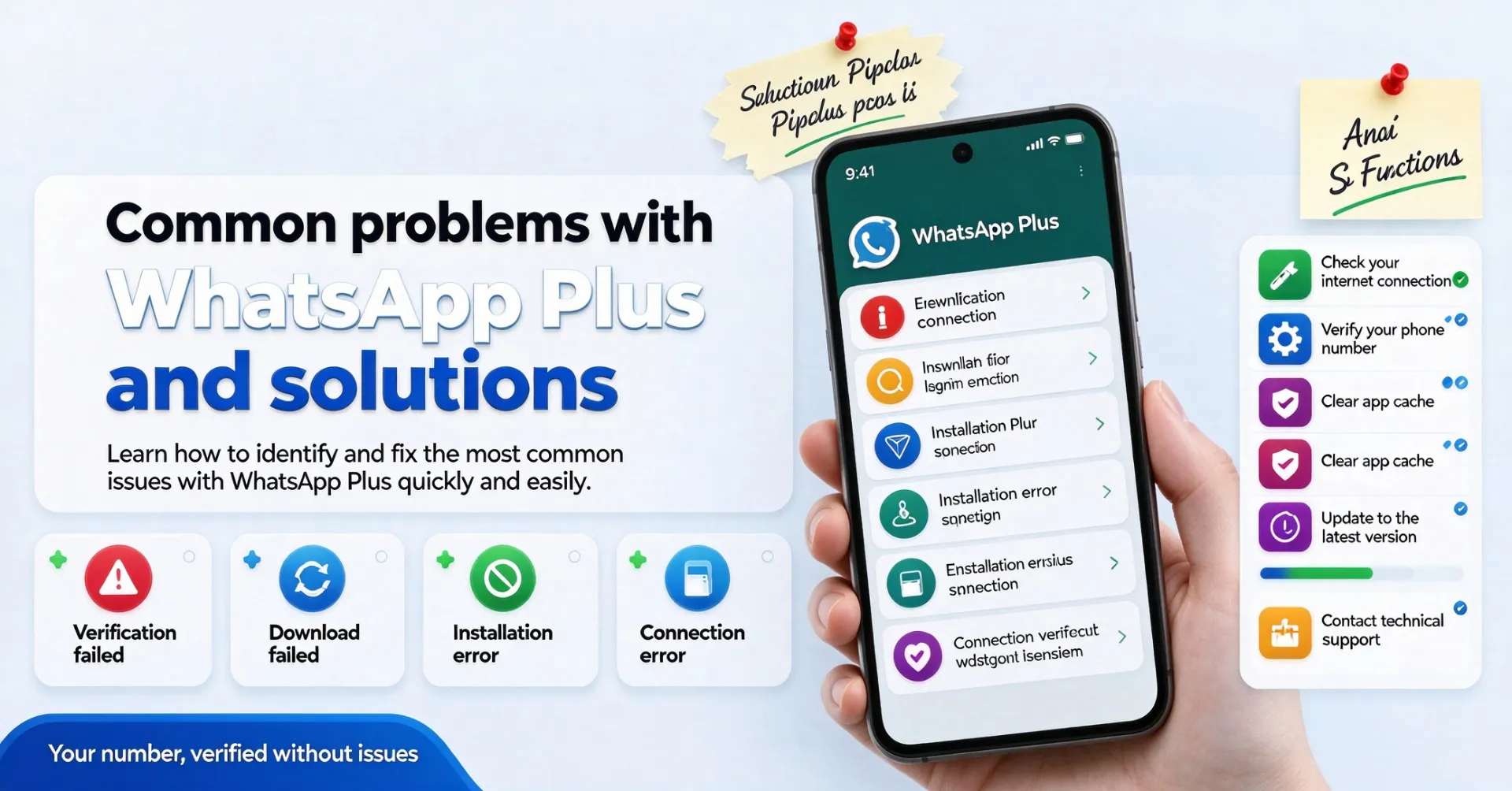
Most WhatsApp Plus issues can be traced to a few common areas, including installation errors, connection problems, unexpected crashes, notification failures, and storage limitations. Instead of randomly changing settings, it is better to identify the cause and test each solution on your installed version. Menu names and available options may differ between builds.
The most effective troubleshooting approach is to change one setting at a time. This makes it easier to understand which adjustment resolves the issue and helps prevent additional problems caused by changing several options simultaneously.
It is also important to remember that WhatsApp Plus is an unofficial third-party application. Before troubleshooting, updating, or reinstalling it, verify the source of the APK and keep a recent backup of your conversations. Compatibility issues and account restrictions may also affect how the application works.
Preparation Before Making Any Changes
Before troubleshooting installation, connectivity, crashes, notifications, or storage issues, check your installed app version, chat backup status, and available device storage. A little preparation can prevent a minor problem from turning into an unnecessary reinstallation.
Start by identifying exactly when the issue first appeared. For example, consider whether it started after an application update, a change to your phone settings, or the installation of a new theme or add-on. This information can help narrow down the possible cause.
Next, check your internet connection, available storage, and application version before considering a reinstall. Once you have completed the initial checks, test the application with a non-essential conversation, file, or contact to see whether the problem has been resolved.
How to Troubleshoot WhatsApp Plus Problems Step by Step
The best way to resolve common WhatsApp Plus errors is to follow a structured troubleshooting process. The steps below are arranged to help you identify the source of a problem before making changes that could affect your data, account, or installation.
-
Identify exactly when the problem first started.
-
Check your internet connection, available storage, and installed app version before reinstalling.
-
Review application permissions and battery settings if notifications are not working.
-
Clear the cache before considering the removal of application data.
-
Create a backup before attempting any reinstallation.
-
Restore the default configuration if the problem appeared after changing a theme or modifying an app setting.
If notifications are delayed or missing, start by checking the application's notification permissions and your phone's battery optimization settings. Some Android devices restrict background activity, which can prevent messages and alerts from appearing on time.
When troubleshooting performance issues, clear the cache before deleting application data. Cached files can sometimes contribute to temporary problems, while clearing app data may remove locally stored information or require you to configure the application again.
Before reinstalling WhatsApp Plus, make sure you have a recent backup. Once the application is working again, inspect your conversations, media files, and account access to confirm that everything important remains available.
How to Confirm That the Troubleshooting Process Has Worked
Do not assume that an issue has been fixed simply because a setting has changed or an option has been enabled. The important thing is to test whether the original problem has actually disappeared.
It is also useful to close and reopen the application after making adjustments. If the problem returns after restarting your phone, check the application's permissions, battery restrictions, and whether your installed build retains the updated settings.
After testing, decide whether to keep the change, investigate further, or restore the previous configuration. If an adjustment solves the problem without affecting other functions, you can keep it. If the result is inconsistent or creates additional errors, return to a simpler setup.
Common Problems You Are Most Likely to Encounter
One common misconception is that WhatsApp Plus behaves identically on every Android phone. In reality, the Android version, manufacturer-specific settings, application build, and granted permissions can all influence performance, even when two devices use settings with similar names.
Another frequent mistake is modifying multiple options at the same time. When an error appears afterward, it becomes difficult to identify which change caused it. A better solution is to restore a basic configuration and test each adjustment separately.
If the application stops responding, avoid selecting Clear Data as your first troubleshooting step. Start by checking the cache, permissions, available storage, internet connection, and installed version. These checks are generally less disruptive and can help protect locally stored information.
You should also be cautious about promotional claims when evaluating third-party builds. Statements such as "100% safe" or "guaranteed anti-ban" are not technical evidence. Always verify the APK source, maintain an updated backup, and understand the potential risks before installing or modifying the application.
Privacy, Security and Practical Limitations
The security of WhatsApp Plus depends on both the features available in your build and the APK file you have installed. A privacy setting may change what information your contacts can see, but the application remains third-party software that is not officially reviewed or supported by Meta.
Keep an updated backup before upgrading, reinstalling, or transferring application data. If troubleshooting affects conversations, photos, videos, or account information, avoid experimenting with your only copy of important files.
Application permissions should also be appropriate for the features you use. If a tool or setting requests access that appears unrelated to its purpose, stop and verify the source of the application before continuing.
If your account is important for work or family communication, consider what could happen if the application stops working or your account becomes restricted. Additional customization does not eliminate compatibility problems, account-related risks, or the lack of official technical support.
Tips for Maintaining a Stable WhatsApp Plus Configuration
Keep a simple record of your installed version, update date, and important application settings. If a problem appears later, this information can help you determine whether it started after an update or a manual configuration change.
Avoid installing several add-ons that promise similar functionality. Every additional component can make troubleshooting more complicated and may introduce background processes that consume battery or affect application performance.
Before enabling an unfamiliar option, read its name and description carefully. Two settings may appear similar while affecting different parts of the application, such as individual conversations, group chats, or all contacts. Never assume that similarly named controls have identical effects.
If you use WhatsApp Plus regularly, perform a quick functionality check after each update. A new build may move existing menus, fix a previous issue, or introduce compatibility changes that affect settings you previously relied on.
Frequently Asked Questions About Common WhatsApp Plus Problems and Solutions
Does this troubleshooting approach work with every WhatsApp Plus version?
Not necessarily. Common WhatsApp Plus problems and their solutions can vary depending on the installed build. Menu names, available options, and application behavior may change after updates, so always check the settings available in your own version.
Should I create a backup before troubleshooting?
Yes. A backup is especially important if the troubleshooting process involves updating, reinstalling, transferring data, or changing APK packages. Although some minor adjustments may not require a backup, keeping one up to date provides additional protection against unexpected data loss.
What should I do if I cannot find the setting mentioned in a guide?
First, check your installed application version and look for similarly named options. If your build does not include the feature, avoid installing unknown tools or modified packages simply to access it.
Are WhatsApp Plus troubleshooting features officially supported by Meta?
No. WhatsApp Plus belongs to the unofficial third-party WhatsApp modification ecosystem. Its available features, troubleshooting options, technical support, and potential risks may differ significantly from those of the official WhatsApp application.
What is the most important troubleshooting step?
The most useful approach is to identify the cause of the problem and change only one setting at a time. Test the result on your own device, protect your important data, and avoid making several changes before confirming whether the original issue has been resolved.
Conclusion and Recommended Approach
WhatsApp Plus troubleshooting is most effective when you identify the actual cause instead of changing settings randomly. Installation errors, connection failures, unexpected crashes, notification problems, and storage limitations can have different causes and require different solutions.
The best approach is to check your application version, permissions, network connection, and available storage before making significant changes. Keep only the adjustments that solve the problem consistently, and avoid putting your conversations, device stability, or account access at unnecessary risk.
Latest Recommendations
More-
-
-
-
-
-
-
-
How to Save WhatsApp Status with WhatsApp Plus
11 18, 2026
Editor's Picks
More-
View
 Case of Wind Traveler A
7.53M
-
View
 Call of Duty Mobile
2330.36M
-
View
 Flight Pilot Simulator 3D
359.08M
-
View
 Crowd Evolution
302.93M
-
View
 Farm City
249.47M
-
View
 Subway Surfers Blast
173.90M
-
View
 Zooba
155.86M
-
View
 Mars Survivor
317.29M
Question
- Download failed
- Outdated Resources
- Resource Error
- Viral Applications
- Pornography
- Gambling
- Political Unrest
- Fraud
- Infringement
- Other
Description
Tel
Report or Correction