WhatsApp Plus Phone Verification Problems: How to Fix Them

WhatsApp Plus Phone Verification Problems: How to Fix Them
Release time:11 18, 2026
/
Author:Andrew Phillips
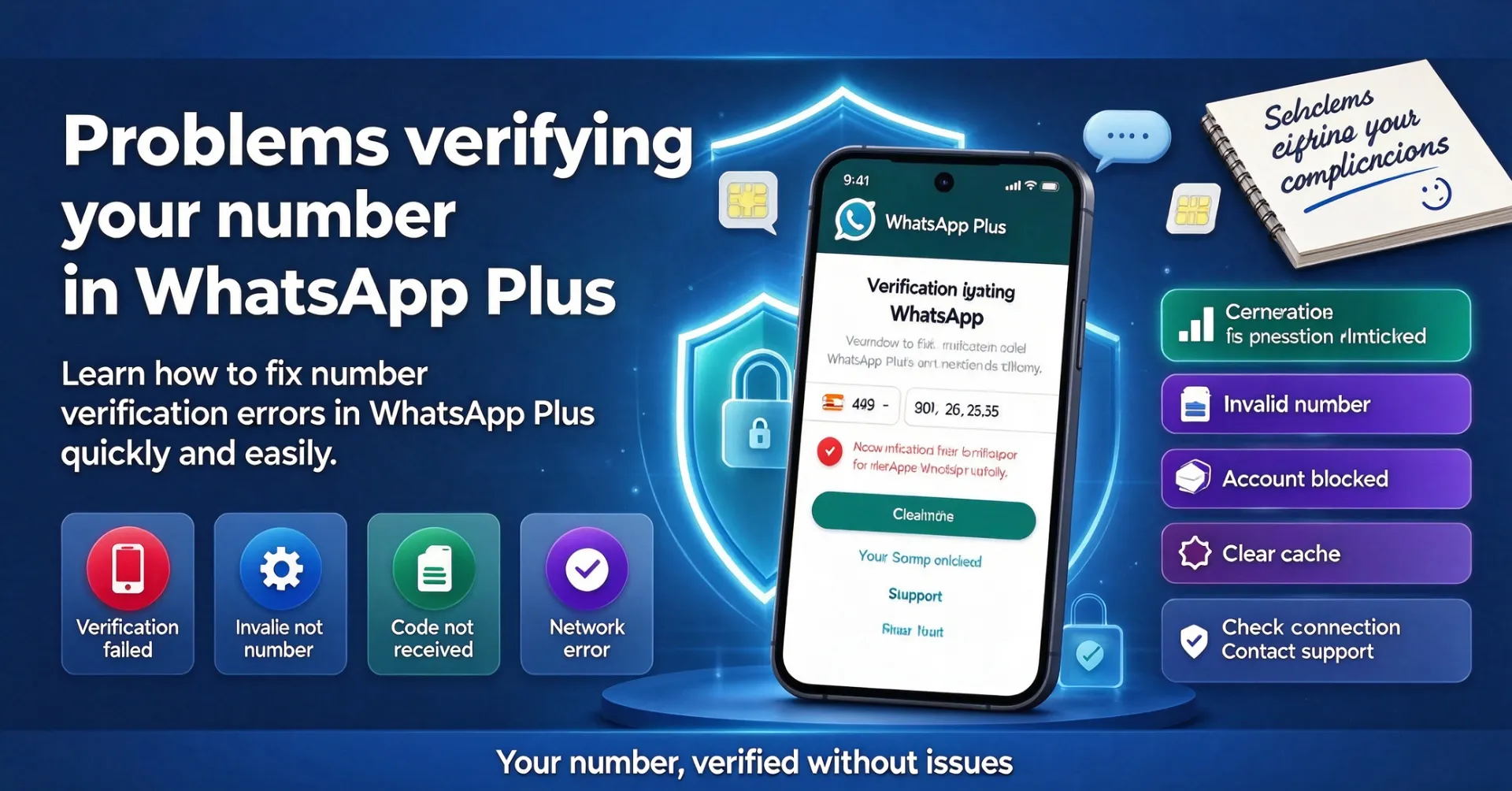
Most WhatsApp Plus phone verification issues involve difficulties receiving SMS codes, requesting verification calls, or getting a phone number accepted. Simply changing an app setting may not solve the problem. You need to test the result on your installed version, as menu names and available options can differ between releases.
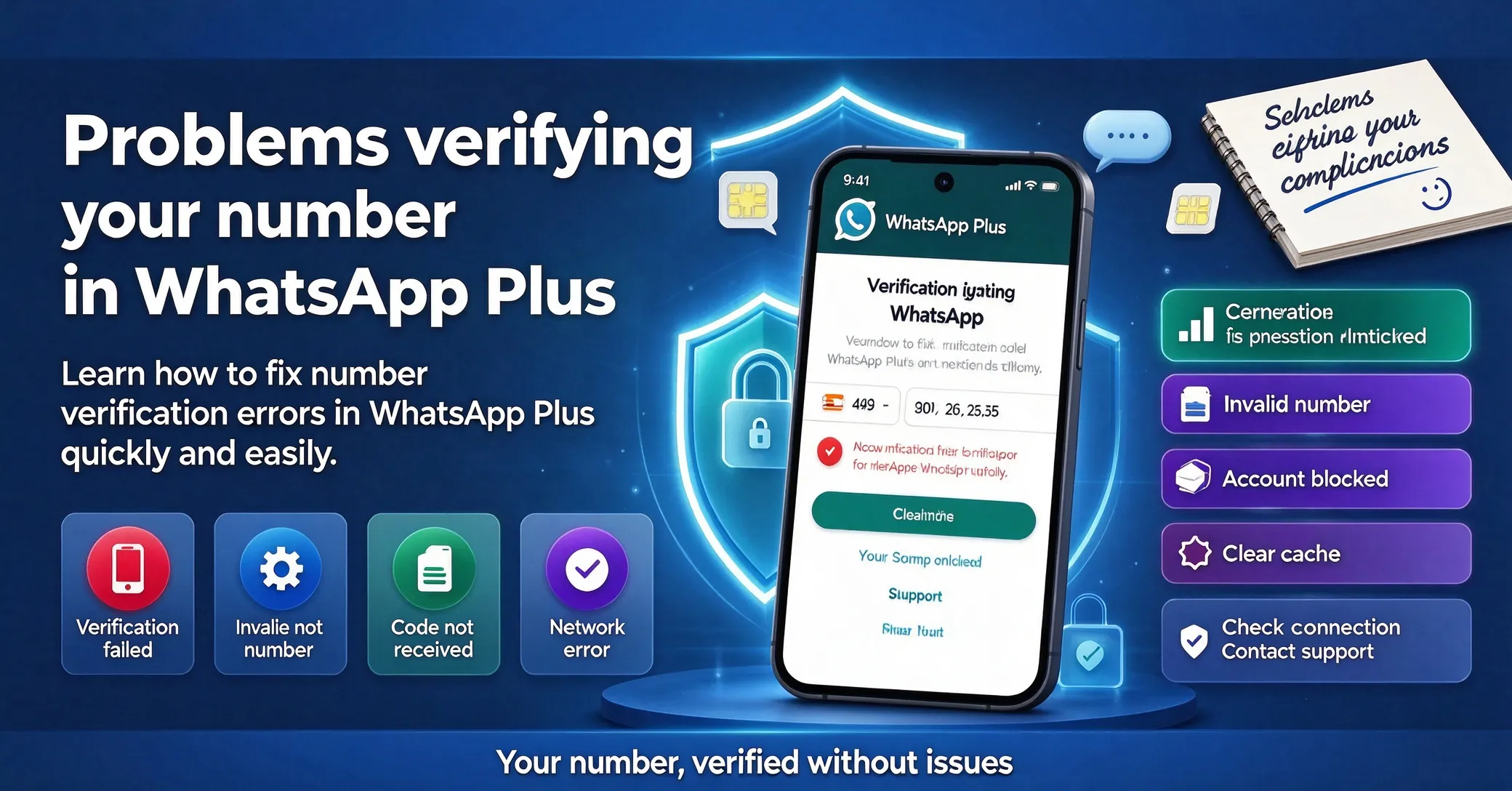
The main goal is to determine whether the issue comes from a network delay, an app compatibility problem, or an account-related restriction. To avoid creating additional problems, make one adjustment at a time and check whether it works before moving on to another solution.
It is also important to remember that WhatsApp Plus is an unofficial third-party application. If you experience problems receiving verification codes or registering a number, check the APK source, protect your chat data with a backup, and consider possible compatibility or account restrictions.
Preparation Before Making Changes
Before troubleshooting SMS delivery, verification calls, or rejected phone numbers, check your installed app version, chat backup status, and available storage space. A few basic checks can help you avoid unnecessary reinstalls or changes that might affect your data.
Start by entering your phone number with the correct international country code. Make sure the number is accurate before changing unrelated settings. This makes it easier to identify the cause if verification fails.
If a verification countdown appears, wait until it finishes before requesting another code. Once the app accepts your number, test basic functionality with a non-essential chat or contact before relying on the configuration.
How to Troubleshoot SMS, Call and Phone Number Verification Issues Step by Step
Troubleshooting should be done gradually so you can identify whether the problem is related to your network, app version, or account. Follow these steps in order and check the result before making changes that could affect your installation or personal data.
-
Enter your phone number using the correct country calling code.
-
Wait for the verification timer to finish before requesting another code.
-
Check your mobile signal and confirm that your phone can receive SMS messages.
-
Avoid entering verification codes from previous attempts.
-
Choose the voice call verification option if it is available.
-
Consider using the official WhatsApp application if the service repeatedly rejects an unsupported third-party client.
When checking SMS delivery, make sure your mobile network is working properly and that incoming messages are not being blocked. Avoid combining this check with a factory reset, app reinstallation, or data deletion unless there is a clear reason to do so.
On your device, always use the latest verification code received for the current attempt. Older codes may no longer be valid, particularly after several requests.
If WhatsApp offers verification through a phone call, you can try that option instead of repeatedly requesting SMS messages. Once verification succeeds, check whether the account remains accessible after closing and reopening the application.
How to Confirm That Phone Verification Is Working Properly
Do not assume verification is complete simply because an option has changed or a confirmation screen has appeared. The important thing is to make sure the number has actually been accepted and that the account can be accessed normally.
You should also check what happens after closing and reopening the application. If verification problems return after restarting your phone, review the app permissions, battery restrictions, and whether your installed build retains its settings correctly.
After completing these checks, make a clear decision. Keep the current configuration if the issue has been resolved, investigate further if the result is inconsistent, or return to a simpler setup if the changes create additional problems.
Common Problems You May Encounter
One common mistake is assuming that phone verification behaves identically across all Android devices. In reality, Android versions, manufacturer-specific system settings, app builds, and permissions can all affect whether SMS messages and verification calls work correctly.
Another frequent issue is changing several settings at once. When the problem gets worse, it becomes difficult to determine which adjustment caused it. A better approach is to return to a basic configuration and test each change separately.
If verification stops working, avoid deleting app data immediately. First, check the cache, permissions, available storage, network connection, and installed version. These checks are generally easier to reverse and can help protect locally stored information.
You should also be cautious about promotional claims made by third-party APK providers. Statements such as "100% safe" or "guaranteed anti-ban" do not establish that an application is secure or compatible. Verify the download source, maintain a recent backup, and understand the potential risks before continuing.
Privacy, Security and Practical Limitations
The security of WhatsApp Plus depends not only on its available features but also on the APK file and its source. A third-party privacy option may change what information other users can see, but it does not make the application an officially reviewed or supported Meta product.
Keep your chats and important media backed up before updating, reinstalling, or transferring application data. If verification problems affect your messages, media files, or account access, avoid experimenting with your only copy of important information.
Pay attention to the permissions requested by the application. If a verification-related feature asks for access that does not appear necessary, stop and investigate the source of the installed build before granting permission.
If you use the account for work or family communication, consider the consequences of losing access or having the account restricted. Additional customization options do not eliminate compatibility issues, account-related risks, or the lack of official technical support.
Tips for Maintaining a More Stable Configuration
Keep a record of your installed version, update date, and important settings related to phone verification. If a problem appears later, this information can help you determine whether it started after an update or a configuration change.
Avoid installing multiple add-ons that claim to provide the same functionality. Every additional component can make troubleshooting more complicated and may introduce unnecessary background activity or battery consumption.
Before enabling a verification-related option, read its name and description carefully. Similar-looking settings may apply to different situations, such as individual chats, groups, or all contacts. Do not assume that two options have identical effects simply because their names are similar.
If you rely on WhatsApp Plus regularly, perform a quick functionality check after each update. A new build may move an existing menu, fix a previous issue, or change a setting that previously worked as expected.
Frequently Asked Questions About WhatsApp Plus Phone Verification
Do SMS and phone call verification problems affect every WhatsApp Plus version?
Not necessarily. Verification behavior depends on the installed build, and available options may have different names, locations, or functions after an update. Some versions may also have compatibility limitations.
Should I create a backup before troubleshooting?
Yes. A backup is particularly important if you plan to update the application, reinstall it, transfer data, or switch to another package. Although a basic verification adjustment may not require reinstalling the app, keeping an up-to-date backup helps reduce the risk of losing important information.
What should I do if the verification option is missing?
First, check your installed version and look for equivalent settings. If your build does not provide the option you need, avoid downloading unknown tools or modified packages simply to add that functionality.
Is WhatsApp Plus phone verification an official Meta feature?
No. WhatsApp Plus is an unofficial third-party application. Its available features, verification behavior, technical support, and account-related risks may differ from those of the official WhatsApp application.
What is the most important verification check?
The most important step is confirming that your phone number is accepted and your account remains accessible on your own device. Test the process carefully without risking important messages or creating additional account problems.
Conclusion and Recommended Approach
WhatsApp Plus phone verification problems should be addressed according to the actual issue rather than by changing settings at random. Check your phone number, network connection, verification method, and installed app version before attempting more significant changes.
The safest approach is to keep only the configurations that work consistently and do not put your chats, device stability, or account access at unnecessary risk. If verification continues to fail, consider switching to the official WhatsApp application for a more reliable and supported experience.
Latest Recommendations
More-
-
-
-
-
-
-
-
How to Save WhatsApp Status with WhatsApp Plus
11 18, 2026
Editor's Picks
More-
View
 Case of Wind Traveler A
7.53M
-
View
 Call of Duty Mobile
2330.36M
-
View
 Flight Pilot Simulator 3D
359.08M
-
View
 Crowd Evolution
302.93M
-
View
 Farm City
249.47M
-
View
 Subway Surfers Blast
173.90M
-
View
 Zooba
155.86M
-
View
 Mars Survivor
317.29M
Question
- Download failed
- Outdated Resources
- Resource Error
- Viral Applications
- Pornography
- Gambling
- Political Unrest
- Fraud
- Infringement
- Other
Description
Tel
Report or Correction